

Emojis have become a universal language, adding flair and personality to our digital conversations. But let’s face it—sometimes those tiny smiley faces and cute icons are just too small to make the impact you want, especially on your Samsung Android device. Whether you’re texting on Samsung Messages, WhatsApp, or another app, making emojis larger can enhance your messaging experience and ensure your emotions shine through. If you’ve ever wondered, “How can I make emojis bigger on my Android Samsung phone?” you’re in the right place. This comprehensive guide will walk you through practical, easy-to-follow methods to enlarge emojis, customize your keyboard, and even create your own oversized emoji stickers. Let’s dive in and make your emojis pop!
Why Make Emojis Bigger on Your Samsung Device?
Small emojis can be hard to see, especially on high-resolution Samsung Galaxy screens or for users with visual impairments. Enlarging emojis not only improves readability but also adds emphasis to your messages, making them more engaging and fun. Whether you’re using a Samsung Galaxy S25, S22 Ultra, or an A-series model, there are built-in features and third-party tools to help you achieve larger emojis without compromising quality. This guide covers solutions for the Samsung Keyboard, Gboard, and other apps, ensuring you have multiple options to suit your needs.
Method 1: Adjust Display and Font Size Settings on Your Samsung Device
One of the easiest ways to make emojis appear larger on your Samsung phone is by tweaking the display and font size settings. This method affects the overall text and icon size across your device, including emojis in apps like Samsung Messages.
Steps to Increase Font and Display Size
- Open Settings: Navigate to the Settings app on your Samsung device, typically found on your home screen or app drawer.
- Go to Accessibility: Scroll to Accessibility and tap it. This section includes options to enhance visibility.
- Adjust Display Size and Text: Select Display size and text. You’ll see sliders for Font size and Display size.
- Increase Font Size: Move the Font size slider to the right to make text and emojis larger. Check the preview window to see how emojis will appear.
- Adjust Display Size: Slide the Display size slider to the right to enlarge icons, buttons, and emojis across apps.
- Save Changes: Tap Done to apply your settings.
This method works universally across most apps, including Samsung Messages and third-party apps like WhatsApp. However, it may slightly alter the layout of your interface, so experiment with the sliders to find a balance that suits you.
Pro Tip
If you only want to enlarge emojis without changing other interface elements, focus on the Font size slider, as it has a more direct impact on text-based elements like emojis.
Method 2: Use Samsung Keyboard’s Sticker and Emoji Features
Samsung’s One UI, available on devices running Android 9.0 or later, offers robust emoji and sticker options through the Samsung Keyboard. You can create or use larger emoji-like stickers, such as Galaxy Avatars (formerly AR Emoji), to make your messages stand out.
How to Access and Use Galaxy Avatars
- Open Samsung Messages: Launch the Samsung Messages app or another messaging app that supports the Samsung Keyboard.
- Access the Emoji Menu: Tap the Emoji icon (smiley face) next to the text field to open the emoji panel.
- Explore Stickers: Swipe to the Stickers section or tap the AR Emoji option to access preloaded or custom stickers.
- Create a Galaxy Avatar: If you haven’t created one, tap AR Emoji or Galaxy Avatar and follow the prompts to take a selfie and customize your avatar. You can adjust its appearance, outfits, and expressions.
- Send Large Stickers: Select a sticker or Galaxy Avatar to send. These are significantly larger than standard emojis and perfect for emphasizing your message.
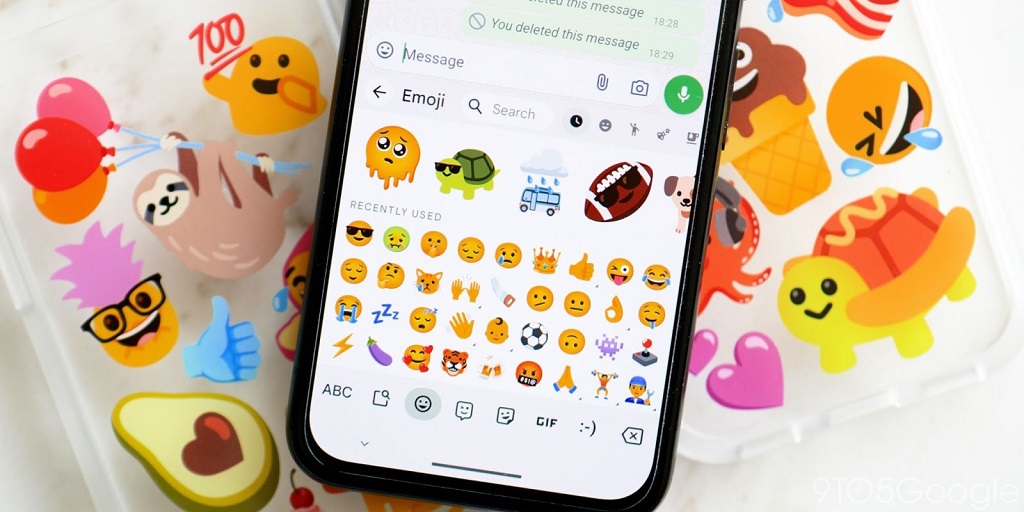
Customizing Stickers
To make your stickers even more unique:
- Navigate to the Camera app, select MORE, and tap AR Zone.
- Choose AR Emoji Studio to edit or create new stickers.
- Save and access these stickers directly from the Samsung Keyboard for quick use.
Galaxy Avatars are ideal for Samsung users who want personalized, large-scale emojis without downloading third-party apps. Note that AR Emoji features may not be available on some Galaxy A models.
Method 3: Use Gboard’s Emoji Kitchen for Larger, Custom Emojis
Google’s Gboard, a popular keyboard alternative for Samsung devices, offers a feature called Emoji Kitchen that lets you combine emojis to create larger, unique versions. This is a fun and creative way to make emojis stand out.
Steps to Use Emoji Kitchen
- Install Gboard: Download Gboard from the Google Play Store if it’s not already installed.
- Set Gboard as Default: Go to Settings > General management > Keyboard list and default > Default keyboard and select Gboard.
- Open a Messaging App: Launch Samsung Messages, WhatsApp, or another compatible app.
- Access Emoji Kitchen: Tap the Emoji icon on Gboard, then type two emojis next to each other (e.g., 😃 + 💝). If a combination is available, Gboard will suggest a larger, combined emoji above the keyboard.
- Send the Emoji: Tap the suggested emoji to insert it into your message. These combined emojis are larger than standard ones and add a playful touch.
Limitations
- Emoji Kitchen doesn’t work with all apps or emoji combinations, so you may need to experiment.
- It’s best suited for face-based emojis, and results vary depending on your Android version.
Method 4: Use Third-Party Apps to Upscale Emojis
If you want to create or enlarge custom emojis, third-party apps like PicWish AI Photo Editor or VanceAI Image Upscaler can help. These apps use AI to increase emoji resolution, making them larger and clearer for use in messaging apps or social platforms like Discord.
How to Use PicWish AI Photo Editor
- Download the App: Search for PicWish AI Photo Editor in the Google Play Store and install it.
- Select an Emoji: Save an emoji image to your gallery (e.g., download from a website like getemoji.com).
- Upscale the Emoji: Open PicWish, tap Fix Blur, and select the emoji from your gallery. The app will upscale the image, making it larger and sharper.
- Save and Share: Save the enlarged emoji to your gallery and share it as a sticker or image in your messaging app.
This method is particularly useful for custom emojis or when you want to share large emojis on platforms that don’t support direct resizing, like Discord.
Alternative Apps
- VanceAI Image Upscaler: A web-based tool that upscales emojis up to 8x their original size. Upload an emoji image, process it, and download the result.
- Bitmoji: Create personalized avatars and stickers that are larger than standard emojis and integrate seamlessly with the Samsung Keyboard.
Method 5: Send Emojis Without Text for Larger Sizes
In apps like WhatsApp, sending emojis without accompanying text can make them appear larger. The size varies based on the number of emojis sent:
- One Emoji: Largest size possible.
- Two Emojis: Slightly smaller than one emoji.
- Three Emojis: Only slightly larger than emojis sent with text.
How to Do It
- Open WhatsApp or another supported messaging app.
- Tap the Emoji icon and select one emoji.
- Send it without any text to see it displayed at its largest size.
This method is quick and doesn’t require additional apps, but it only works in specific apps like WhatsApp and may not apply to Samsung Messages.
Troubleshooting Common Issues
- Emojis Still Too Small? If adjusting font size doesn’t work, try a third-party keyboard like Gboard or use an upscaling app for custom emojis.
- App-Specific Limitations: Some apps, like Discord, resize emojis to a standard 32×32 pixels. Use an AI upscaler to create larger versions for these platforms.
- Compatibility Issues: Ensure your Samsung device is updated to the latest One UI version to access new emoji features. Go to Settings > Software update to check for updates.
Additional Tips for Samsung Users
- Explore Good Lock: Samsung’s Good Lock app includes a Keys Cafe module that lets you create custom sticker packs with enlarged emojis. Download it from the Galaxy Store and experiment with sticker creation.
- Use Accessibility Zoom: For temporary magnification, enable Accessibility Zoom in Settings > Accessibility > Vision enhancements. Pinch to zoom in on emojis during typing.
- Update Your Device: New emojis and features are often tied to Android updates. Keep your Samsung phone updated to access the latest emoji options.
Related Topic: Car Tools for RV and Camper Maintenance
Conclusion and Call to Action
Making emojis bigger on your Samsung Android device is easier than you think, whether you tweak display settings, use the Samsung Keyboard’s Galaxy Avatars, experiment with Gboard’s Emoji Kitchen, or leverage third-party apps like PicWish. Each method offers unique benefits, so try them out to find what works best for your messaging style. Larger emojis can make your conversations more expressive, accessible, and fun, ensuring your messages leave a lasting impression.
Ready to supercharge your emoji game? Start by adjusting your Samsung device’s display settings or downloading Gboard to create custom emoji combinations. Share your favorite oversized emojis with friends and let us know in the comments which method worked best for you! Have a tip we missed? Drop it below to help other Samsung users make their emojis pop