

The Xbox 360 remains a favorite among gaming enthusiasts, but like any console, it’s not without its problems. One common issue is when the HDMI audio suddenly stops working. If you’re facing this frustrating issue, don’t worry. In this guide, we’ll explore the root causes of this problem Xbox 360 HDMI audio not working and provide step-by-step solutions to get your sound back. Plus, we’ll explore Ask For Files to find additional resources for fixing common gaming issues.
Why is Xbox 360 HDMI Audio Not Working?
Before jumping into the fixes, it’s essential to understand why this issue occurs. Here are the most common reasons:
- Incorrect Audio Settings: If your Xbox 360’s audio settings are not configured correctly, it can prevent sound from playing through HDMI.
- HDMI Handshake Issues: Sometimes, the connection between the console and the TV fails, leading to audio problems.
- Faulty HDMI Cable: A damaged or poor-quality HDMI cable can cause audio loss.
- TV Audio Settings: If your TV is set to external speakers or a different audio output, it may not play sound from the Xbox 360.
- Firmware or Software Issues: Outdated software or firmware bugs can interfere with audio output.
- Hardware Malfunction: In rare cases, the Xbox 360’s HDMI port may be damaged.
Now that we know the potential causes, let’s dive into the solutions. If your Xbox 360 is also making a loud fan noise, it could be due to dust buildup, overheating, or an aging cooling system. For a complete guide on fixing this issue, check out xbox 360 fan loud.

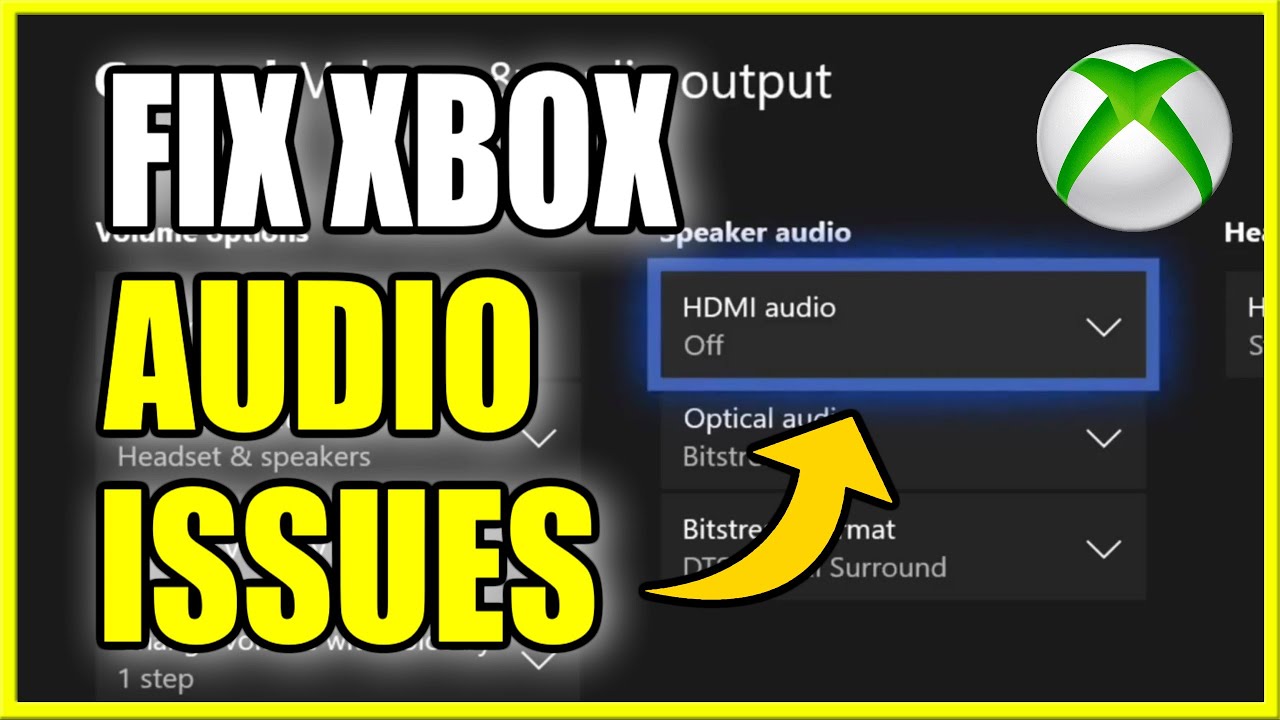
Fixing Xbox 360 HDMI Audio Issues: Step-by-Step Solutions
1. Check and Adjust Your Xbox 360 Audio Settings
Incorrect settings are one of the most common reasons for HDMI audio issues. Follow these steps to ensure your settings are correct:
- Turn on your Xbox 360 and go to the Dashboard.
- Navigate to Settings > System > Console Settings.
- Select Audio and ensure Digital Output is set to HDMI.
- If the issue persists, try changing the Dolby Digital settings to Stereo to see if it resolves the problem.
Many users have reported success simply by toggling between these options.
2. Restart Your Console and TV
A simple reboot can often resolve minor glitches. Here’s how:
- Turn off your Xbox 360 and your TV.
- Unplug both devices from the power source for at least 30 seconds.
- Plug them back in and turn them on.
- Check if the audio is working.
This process helps refresh the HDMI connection, which can fix audio handshake issues.
3. Test a Different HDMI Cable
A faulty HDMI cable can easily cause audio dropouts. Try using a different HDMI cable and see if that restores sound.
- Use a high-speed HDMI cable for better audio and video transmission.
- If you’re using an HDMI switcher or adapter, connect the Xbox 360 directly to the TV to rule out interference.
4. Ensure Your TV’s Audio Settings Are Correct
Your TV’s audio settings might be preventing the sound from coming through HDMI. Follow these steps:
- Press the Menu button on your TV remote.
- Navigate to Audio Settings.
- Set the audio output to HDMI instead of external speakers or optical audio.
- If available, disable HDMI-CEC (also called Anynet+ or Bravia Sync) to see if it makes a difference.
5. Try a Different HDMI Port on Your TV
Sometimes, specific HDMI ports on TVs develop issues. Switch your Xbox 360’s HDMI cable to a different port and check if the sound returns.
6. Perform a Hard Reset on Your Xbox 360
If none of the above solutions work, try resetting your Xbox 360’s display settings:
- Turn off the console.
- Press and hold the power button for 10 seconds until the console turns off.
- Turn it back on and hold the Y button while pulling the right trigger to reset the display settings.
- Reconfigure the HDMI settings and test the audio.
7. Check for Software Updates
Outdated software can sometimes cause HDMI audio issues. Make sure your Xbox 360 is running the latest firmware:
- Go to Settings > System > Console Info & Updates.
- Check for available updates and install them.
8. Use an Optical Audio Cable as a Backup
If HDMI audio still isn’t working, you can use an optical audio cable as an alternative. This will allow you to get sound through a sound system or TV while keeping HDMI for video.
Four Chrome Extensions That Let You Listen To Radio As You Browse
Final Thoughts
Xbox 360 HDMI audio issues can be incredibly frustrating, but they are usually fixable. By checking your audio settings, cables, and TV configurations, you can restore sound and get back to gaming. If all else fails, using an optical audio cable or seeking professional repair might be the best options. Plus, explore The 4 Best Android Room Planning Apps to enhance your space and streamline your setup.
Have you encountered this issue before? Let us know in the comments how you fixed it!